Integrating Dodo Payments Licensing in macOS Apps
A practical Dodo Payments licensing flow for Swift macOS apps, covering activation, validation, deactivation, Hardware UUID binding, and Keychain storage.
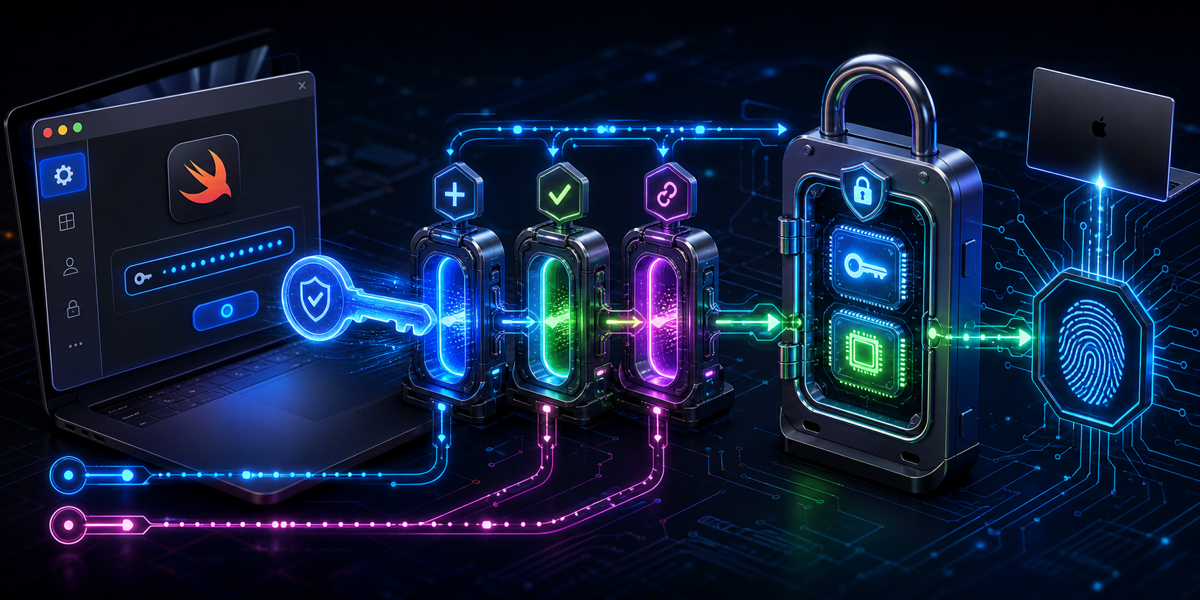
Monetizing a macOS app usually means answering three practical questions: how do users activate a purchase, how do you keep that activation tied to the right machine, and how do you let the user move the license later without support tickets? Dodo Payments gives you the licensing endpoints for that flow. The app still needs to wire them together carefully.
This post walks through a complete Swift macOS integration: activation, background validation, deactivation, Hardware UUID binding, Keychain storage, and the small edge cases that can otherwise burn license seats by accident.
1. UI Guidelines for Licensing
Treat licensing as part of your settings experience, not as an afterthought. The screen should make the current state obvious, let paying users verify their key, and give unlicensed users a direct path to activation.
Top Level Structure
Use a bold title2 header such as “License & Activation”, then render either a trial/unlicensed view or a licensed view. A simple VStack with top-leading alignment and around 30 points of padding is enough.
The Licensed State
In the licensed view, keep the message calm and explicit:
- Show a green
checkmark.seal.fillwithimageScale(.large)next to a headline like “[App Name] is Licensed”. - Add a short secondary thank-you line, for example “Thank you for purchasing [App Name]!”
- Display “License Key:” in bold, then the stored key in a monospaced body font with
textSelection(.enabled)and a secondary color. - Do not show the license instance ID in the UI. It is operational state, not user-facing information.
- Provide a plain “Deactivate License” button with top padding.
The Unlicensed / Trial State
The unlicensed view has two jobs: explain trial status and make activation frictionless.
- For an active trial, show an orange
clock.fill, a headline such as “Trial Active: X days remaining”, and a short secondary explanation. - For an expired trial, show a red
exclamationmark.triangle.fill, a “Trial Expired” headline, and text that explains the user needs a license to continue. - After a
Divider(), add “Enter License Key”. - Use an
HStackwith aTextFieldusingRoundedBorderTextFieldStyle(), a max width of300, and an “Activate” button withkeyboardShortcut(.defaultAction). - Show a small
ProgressViewwhile activation is in flight. - Render activation errors as red caption text below the input.
- End with a caption-sized purchase prompt such as “Don’t have a license?” plus a
LinkorButtonto your purchase page.
2. Gathering Machine Information
To enforce a device limit, activation needs a stable machine identifier. On macOS, retrieve the Hardware UUID with IOKit; if that fails, generate and persist a random UUID as a fallback.
Privacy Note: Do NOT use the Mac’s localized name (e.g., “Yang’s Mac mini”). This can cause privacy concerns and clutter your dashboard. Always rely on a raw, anonymous identifier instead.
3. Activating the License
When the user enters a license key for the first time, call the activation endpoint. Pass the Hardware UUID or fallback UUID as name so Dodo Payments can bind the activation to this machine.
Endpoint: POST https://live.dodopayments.com/licenses/activate
Payload: {"license_key": "user_input_key", "name": "hardware_uuid"}
Response: Expect a 201 Created status. Store the instance ID from the id key, or from license_key_instance_id if that is what the response provides.
Robust Activation Flow
Activation consumes a license instance, so do not blindly call it every time the user presses “Activate”. First check whether the entered license key exactly matches the key already stored in the Keychain and whether you already have a stored instance ID.
If both values exist, skip the activation endpoint and run validation instead. This protects users from duplicate instance creation when the UI gets out of sync, the app is reinstalled, or a previous activation succeeded but the local licensed state was not refreshed.
4. Secure Credential Storage
Never store the license key or license instance ID in UserDefaults. Use the macOS Keychain for both values:
licenseKeylicenseInstanceId
The license key is user-visible and can be shown in the licensed settings screen. The instance ID should stay internal because it identifies this app installation’s activation record.
5. Background Validation
On app launch, and periodically if your app stays open for long sessions, validate the stored license. Send both the license key and the license instance ID so validation checks this specific machine authorization.
Endpoint: POST https://live.dodopayments.com/licenses/validate
Payload: {"license_key": "stored_key", "license_key_instance_id": "stored_instance_id"}
Response: Expect {"valid": true}.
If validation fails, clear the in-memory licensed state and surface a helpful message in the settings UI. Avoid deleting Keychain values immediately on a transient network error; reserve deletion for explicit deactivation or a confirmed invalid response.
6. Deactivating the License
Users should be able to release a seat from the current Mac and use it elsewhere. That is what deactivation is for.
Endpoint: POST https://live.dodopayments.com/licenses/deactivate
Payload: {"license_key": "stored_key", "license_key_instance_id": "stored_instance_id"}
After a successful deactivation call, delete both licenseKey and licenseInstanceId from the local Keychain and return the UI to the trial or unlicensed state.
7. Handling Test Mode
During development, point debug builds at the Dodo Payments test endpoint. A #if DEBUG switch is enough for the base URL, but the storage keys must also be separated.
Without separate Keychain keys, a debug build can save a test license and a release build can later try to validate that same value against the live endpoint. That creates confusing failures and can lead to unnecessary reactivation attempts.
1
2
3
4
5
6
7
8
9
#if DEBUG
let baseURL = URL(string: "https://test.dodopayments.com/licenses")!
let licenseKeyStorageKey = "dodoLicenseKey_Test"
let instanceIdStorageKey = "dodoInstanceId_Test"
#else
let baseURL = URL(string: "https://live.dodopayments.com/licenses")!
let licenseKeyStorageKey = "dodoLicenseKey"
let instanceIdStorageKey = "dodoInstanceId"
#endif
Common Mistakes and Pitfalls
These are the integration details worth double-checking before shipping:
- Using
/licenses/validatefor initial activation: Validation does not bind a machine to the license. First-time entry must use/licenses/activate. - Losing the instance ID: Without the instance ID, you cannot validate or deactivate the specific machine activation later.
- Checking only for HTTP 200 on activation: Activation returns
201 Created. Accept successful2xxresponses where appropriate, and explicitly handle the expected201. - Parsing only
detailin API errors: Dodo Payments errors may usemessage, for example{"code":"LICENSE_KEY_LIMIT_REACHED","message":"License key activation limit reached"}. Check bothmessageanddetail. - Mixing debug and release credentials: Use separate Keychain keys for test and live environments so test activations never pollute release builds.
- Using a localized Mac name as the activation name: It can expose personal information and makes your dashboard noisy. Prefer the Hardware UUID or a generated UUID fallback.
With those guardrails in place, the licensing flow becomes predictable: activation creates a machine-bound instance, validation confirms it is still authorized, deactivation frees it, and Keychain storage keeps the sensitive state out of plain preferences.