Integrating Sparkle 2 for Auto-Updates in macOS Apps
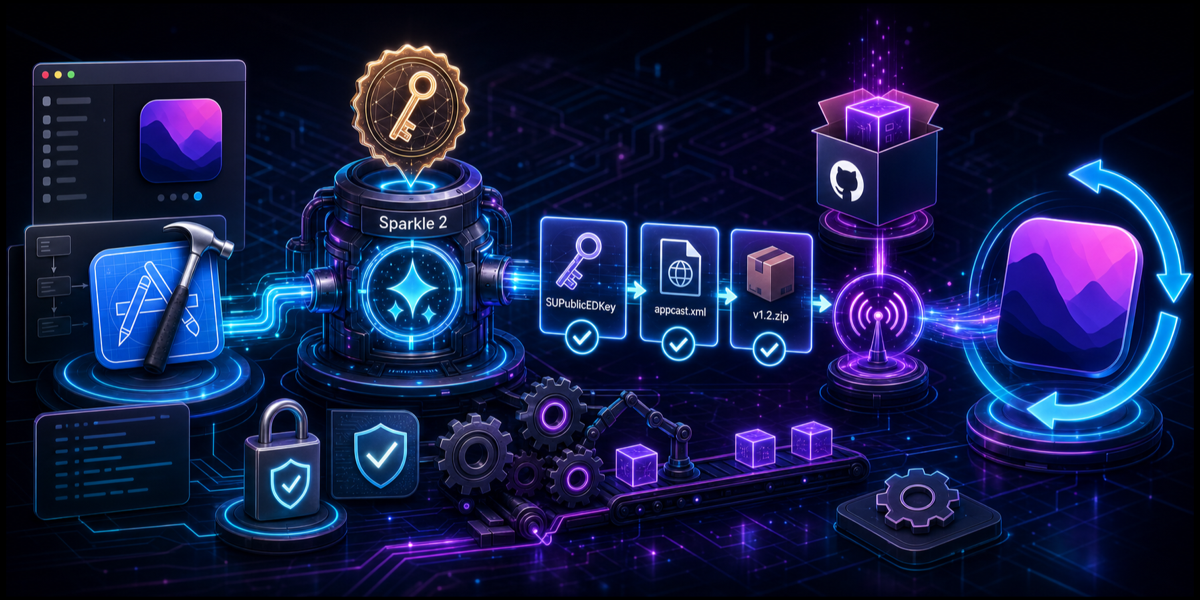
Adding auto-update functionality to a macOS application distributed outside the Mac App Store is essential. Sparkle has long been the gold standard for this. In this post, we’ll walk through a robust workflow for integrating Sparkle 2 into a modern Xcode project, from generating keys to automating the release process using GitHub Releases.
1. Information Gathering & Hosting Strategy
Before writing any code, decide where the updates will be hosted. Typically, you will need a Target GitHub Repository URL to host your appcast and .zip files. You can host the .zip files on GitHub Releases or directly in the repo via GitHub Pages.
2. Manual Package Installation
To add Sparkle to your project:
- Open your Xcode project.
- Go to File > Add Package Dependencies…
- Enter
https://github.com/sparkle-project/Sparkleand add it to your app target.
CRITICAL: Do NOT attempt to programmatically edit
project.pbxprojto add the Swift Package Manager dependency (e.g., via script), as this is highly prone to corruption. Use the Xcode GUI.
3. Key Generation
Sparkle uses EdDSA keys to cryptographically sign updates, ensuring they haven’t been tampered with.
To save effort across multiple projects, it is highly recommended to store the Sparkle binaries globally rather than downloading them for every project.
- Check if you already have the tools in a central location (e.g.,
~/.developer/SparkleBin/bin). If not, download the latest Sparkle release.tar.xzfile from the Sparkle GitHub Releases page, extract the contents into~/.developer/SparkleBin/, and add thebindirectory to your shell’sPATH. - Run the key generator using your global tools:
1
~/.developer/SparkleBin/bin/generate_keys
- The private key will be saved to your Keychain, and the tool will output a
SUPublicEDKey. Save this public key!
4. Project Configuration
Hardened Runtime
First, verify that Hardened Runtime is enabled for your app target in Xcode’s Signing & Capabilities tab. If not, enable it.
Configuring the Public Key (SUPublicEDKey)
How you configure the Sparkle public key depends entirely on whether your project uses a traditional Info.plist file or if Xcode generates it for you.
Approach A: Traditional Projects (with an Info.plist file) If your project directory contains a physical Info.plist file:
- Open the
Info.plistfile in Xcode. - Add a new row.
- Set the Key to
SUPublicEDKey, Type toString, and paste the key generated in Step 3 as the value.
Approach B: Modern Projects (No Info.plist file) Modern Xcode projects use GENERATE_INFOPLIST_FILE = YES and build the plist dynamically.
- Select your app Target and go to the Build Settings tab.
- Click the + button and select Add User-Defined Setting.
- Set the setting name to
INFOPLIST_KEY_SUPublicEDKey. - Paste the generated key as the value. Xcode will automatically inject this into the compiled
Info.plistduring the build process.
Note: Always verify that this key actually appears in the compiled app bundle (build/.../Contents/Info.plist).
5. Code Integration (Configuring the Feed URL)
While you theoretically could put your appcast URL (SUFeedURL) into your Info.plist or Build Settings, Xcode sometimes aggressively filters out custom Info.plist keys during the build process.
To guarantee that your feed URL is correctly assigned and to cleanly bypass Xcode’s Info.plist generation quirks, the best practice is to provide the URL directly in code.
Update your App’s entry point (e.g., AppDelegate.swift or the main SwiftUI App struct):
1
2
3
4
5
6
7
8
9
10
11
12
13
14
15
16
17
18
19
20
21
22
23
24
import SwiftUI
import Sparkle

class AppDelegate: NSObject, NSApplicationDelegate, SPUUpdaterDelegate, SPUStandardUserDriverDelegate {
    var updaterController: SPUStandardUpdaterController!

    func applicationDidFinishLaunching(_ aNotification: Notification) {
        // Initialize Sparkle.
        // Note: For background/menubar apps, pass `self` to `userDriverDelegate`
        // to silence the "gentle reminders" warning. For regular apps, `nil` is fine.
        updaterController = SPUStandardUpdaterController(startingUpdater: true, updaterDelegate: self, userDriverDelegate: self)
    }

    func feedURLString(for updater: SPUUpdater) -> String? {
        // Return your appcast URL here
        // Ensure the URL uses https to satisfy App Transport Security (ATS) requirements.
        return "https://your-domain.com/appcast.xml"
    }

    // MARK: - SPUStandardUserDriverDelegate (Required for Menubar Apps)
    var supportsGentleScheduledUpdateReminders: Bool {
        return true
    }
}
Then, add a “Check for Updates…” button to the app’s menu (e.g., in a MenuBarExtra or standard Window menu) that calls updaterController.checkForUpdates(nil).
6. Automating Releases with a Makefile
To streamline the release process, you can create a Makefile in the project root. This automates building the .zip and generating the appcast.
Key Makefile Components:
- Build Path: Use
xcodebuildwith the-derivedDataPath build/DerivedDataflag to avoid SPM resource copying bugs. Do NOT useCONFIGURATION_BUILD_DIR. - Dynamic Versioning: Extract the app’s version dynamically:
1
VERSION := $(shell xcodebuild -project $(PROJECT) -scheme $(SCHEME) -showBuildSettings 2>/dev/null | grep -w MARKETING_VERSION | awk '{print $$3}')
- Packaging: Package the generated
.zipinside thebuild/folder to prevent cluttering the project root. - Appcast Generation:
- Copy the versioned
.zipinto the appcast directory. - Run
generate_appcast --download-url-prefix <github-releases-url-prefix>/v$(VERSION)/ <appcast-directory>. - Crucially, delete the
.zipfrom the appcast directory afterward so the large binary isn’t committed to the GitHub Pages repo (since it will be uploaded to GitHub Releases instead).
- Copy the versioned
7. GitHub Pages Deployment Check
If you’re hosting the appcast.xml on GitHub Pages, verify the repository configuration. If the repository uses a bundler or static site generator (e.g., Vite, React), static files in the repository root will not be deployed by default.
Ensure your Makefile places the appcast.xml in the correct public static directory (e.g., <appcast-directory>/public) so it gets successfully copied to the dist or build directory during the GitHub Actions deployment and doesn’t return a 404 error.
Common Pitfalls to Avoid
- SPM Project Corruption: Automating the SPM package addition via sed/awk often breaks things. Always instruct developers to do it via the Xcode GUI.
- Filtered Info.plist Keys: Relying exclusively on
INFOPLIST_KEY_SUFeedURLinproject.pbxprojis risky whenGENERATE_INFOPLIST_FILE = YES. Always provide the feed URL in code viaSPUUpdaterDelegate. - xcodebuild SPM Bug: Using
CONFIGURATION_BUILD_DIRinxcodebuildbreaks Swift Package resources. Always use-derivedDataPath. - Stale Enclosures: Failing to delete old
.zipfiles locally before runninggenerate_appcastwith--download-url-prefixcauses old enclosures to be prefixed with the newest version tag. - 404 on Appcast URL: Placing the
appcast.xmlin the root of a GitHub Pages repository that uses a bundler. It must go in thepublic/directory!
By following these steps, you can create a robust, automated update pipeline using Sparkle 2 that integrates seamlessly with GitHub Releases.